


Classifica
-

Vam
Moderatore12Punti14.905Numero contenuti -

marcello4895
Moderatore9Punti5.137Numero contenuti -
cippy
Admin4Punti29.001Numero contenuti -

Steven
Utente forum4Punti1.391Numero contenuti



Contenuto Popolare
Mostra il contenuto con la massima reputazione di 29/09/2025 in Risposte
-
3 punti
-
2 punti
-
2 punti
-
Buonasera a tutti! Grazie a tutti coloro che hanno festeggiato i 20 anni del megaMINI! Spero e credo vi siate divertiti e sia stata una giornata piacevole per tutti voi.2 punti
-
2 punti2 punti1 puntoSono andato a vedere una MINI Cooper Clubman 1.5 136 cv. , ed è stato un colpo di fulmine. La cercavo Diesel, 4 cilindri, con tagliandi certificati, possibilmente con garanzia MINI Next, ed invece... Niente di tutto ciò !! Benzina, 3 cilindri, i tagliandi non si sa chi li ha fatti e quando...😭 Ma è bellissima, e vedendola mi son venuti gli occhi a cuoricino e non ho capito più nulla. Carrozzeria con solo qualche graffietto impercettibile ed interni in condizioni pressochè perfetti per una vettura di 9 anni e 123000 km. Nonstante il CDB segnalasse batteria scarica, il motore è partito senza incertezze con un bel brontolio cupo assente da vibrazioni o rumori strani, e ad una prima ispezione si è rivelato asciutto e senza tracce di trasudamenti di qualsiasi tipo, polveroso ma non lavato. Ho deciso, visto che a quel prezzo non si trova nulla di simile, di prenderla ed assumermi il rischio. Dovrebbero consegnarmela tra qualche giorno, dopo un (dicono) accurato tagliando. La concessionaria (Brogi e Collitorti) , nata nel 2004 dall'unione tra B&B Automobili S.r.l., e Collitorti s.n.c, storica concessionaria auto della Valdera già dal 1948, ha un'ottima reputazione e spero che la mia fiducia sarà ben riposta. Metto qualche foto presa dall'inserzione, provvederò poi a farne qualcuna quando l'avrò tra le mani.


 1 punto1 puntoL'arrivo in concessionaria BYmyCAR Milano La collezione di auto d'epoca Parcheggio presso Le Corti della Gualdana


 1 punto1 punto1 punto1 punto1 punto1 punto1 punto1 puntoIn certi casi è meglio un vano motore "sporco" che pulito perchè mostra tutti i difetti anzichè nasconderli.1 puntoMi accodo anche io ai ringraziamenti per la meravigliosa giornata! Il tempo ci ha graziati; il giro ci ha graziati. E la location direi che ha parlato da sola! Ho girato tutte le mie foto in alta risoluzione a @Matte 6464 per poter includere quelle che più dovesse preferire nella galleria. E posso solo aggiungere che anche Spike si è divertito! 🐕
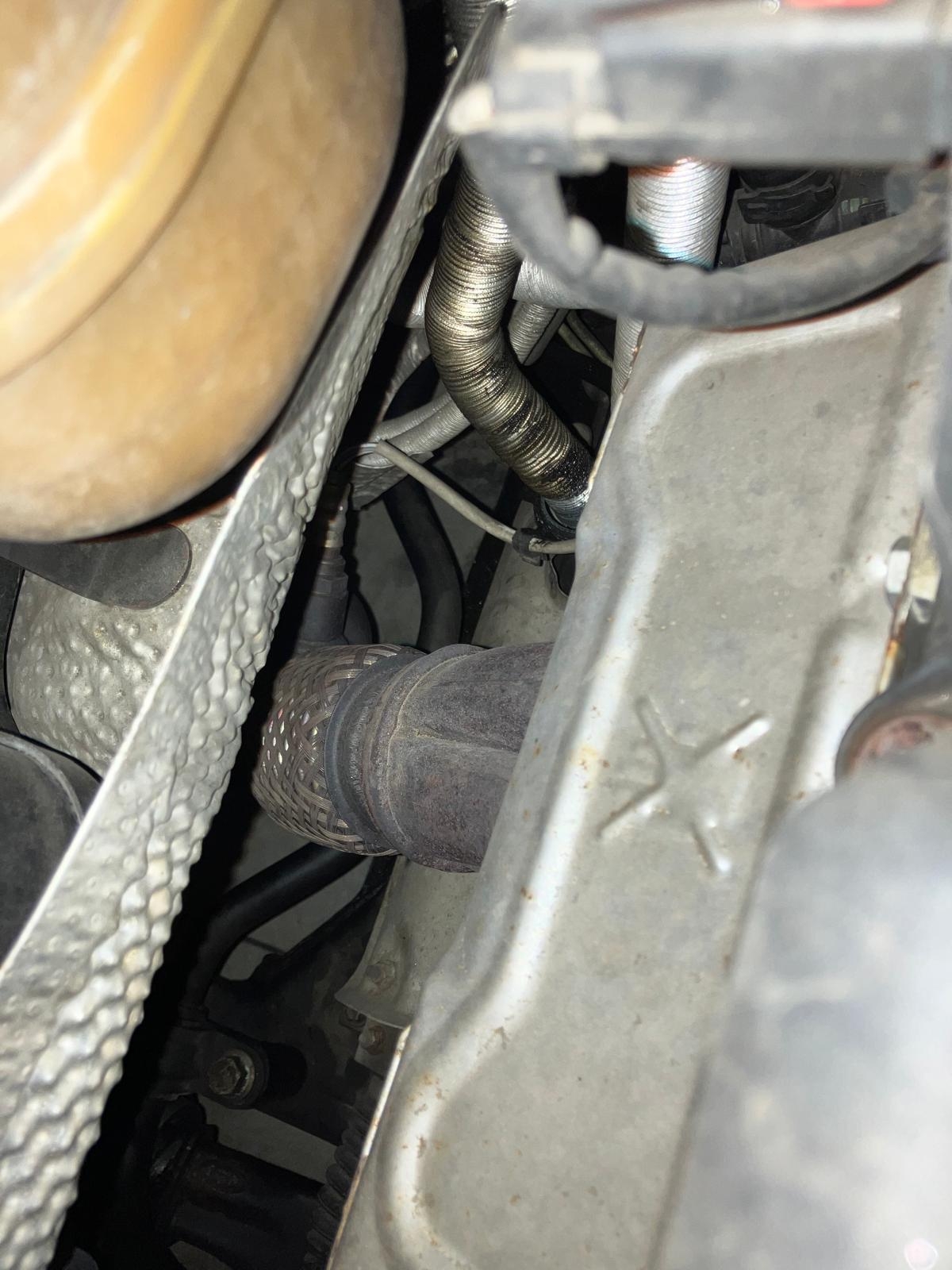
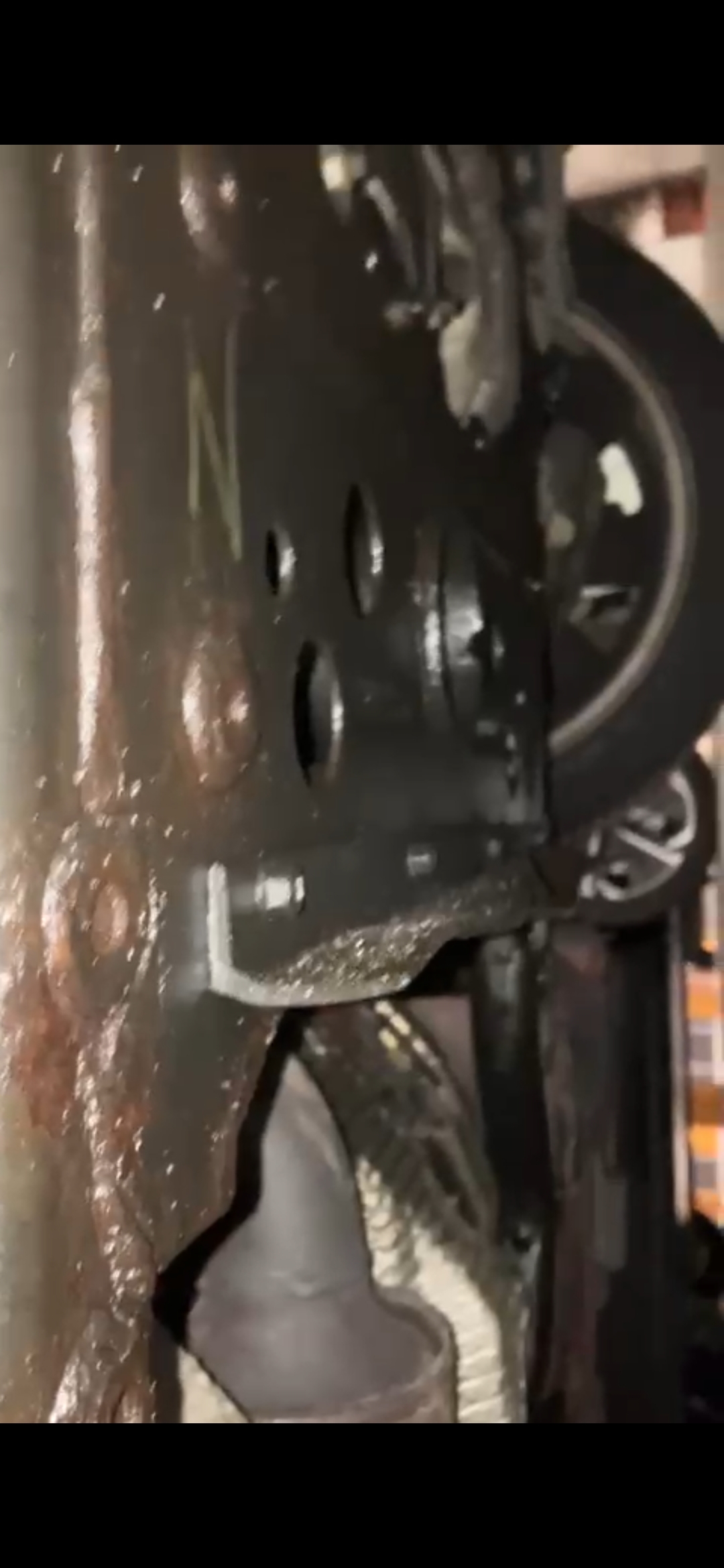
 1 puntoBellissimo raduno, poi ho pure vinto un premio 🤣1 punto1 punto1 puntoE' stato un piacere anche per me1 puntoGrazie a te di esser venuto da così lontano. Finalmente ci siamo conosciuti ed é stato un piacere fare due chiacchiere con te.1 puntoBuongiorno, grazie per aver organizzato questa splendida giornata. Stasera carico un pò di foto1 puntoAllego anche un video così mi dite se secondo voi il rumore del motore è ok o meno. Al minimo sento un cigolio, il proprietario dice che forse aveva il livello dell'olio basso. VID-20250927-WA0031.mp41 punto1 punto1 punto1 puntoBuon giorno e buon raduno a tutti ragazzi. divertitevi anche per noi che non siamo potuti venire…1 puntoSalve ragazzi, ho fatto un altro passo avanti verso l'essere un possessore di MINI. Ieri sono andato a visionare una vettura ed ho notato i seguenti 4 punti che vorrei condividere con voi ed eventualmente avere delle dritte in merito: A) In generale lo sterzo, il cambio e la frizione mi sono sembrati abbastanza duri. Confrontando con i ricordi che ho di veicoli dell'epoca, non ricordo questa durezza francamente, ma potrei sbagliarmi. Ho letto altre discussioni in cui diverse persone citano cose simili, ma vorrei avere la vostra opinione. B) Ho notato che il tubo del liquido servosterzo era bagnato, così come esternamente il relativo serbatoio. Sotto il motore poi era unta, non gocciolava ma era "oleosa", diciamo abbastanza in linea con le immagini che vedo in rete. Ad oggi non ho ancora visto una r53 totalmente asciutta sotto. Tuttavia non vorrei che questo fosse legato alla durezza dello sterzo. Dal rumore la pompa sembrava funzionare però non ho confronti con altre MINI. C) Il proprietario sostiene che la vettura abbia una piccola perdita dall'attuatore frizione e che il suo meccanico gli abbia consigliato di tenerla così "sinchè dura" essendo limitata. Anche in questo caso non so se sia un problema tipico di queste vetture o meno. D) Ruotando lo sterzo a freddo ho sentito un leggero rumore. Cercando in rete penso sia legato al mancato ingrassaggio del cuscinetto del piantone che non dovrebbe essere un problema grave. Lato motore infine il rumore mi è sembrato normale, forse un leggero ticchettio solo al minimo, ma mi piacerebbe condividere con qualcuno di voi un video per averne la conferma. Si tratta di una Cooper S cabrio, 110.000 km, in generale in ottimo stato. Vernice perfetta, plastiche ok, molti accessori compreso diff autobloccante, secondo set di cerchi, sedili riscaldabili, xenon, interni in pelle con pochi segni, cappottina funzionante e senza tagli o riparazioni, guarnizioni ok (non cotte), incluse quelle posteriori. Richiede 9k. Prezzo un filino alto in termini assoluti ma vedendo che auto simili in giro stanno sopra i 10-11k, e che prendendone una a 7 ma da riverniciare o con interni e cappottina trascurati si farebbe presto a raggiungere tale cifra, mi sembra non un affarone ma ragionevole. Grazie
 1 punto1 punto1 punto1 punto1 punto1 punto0 punti0 punti0 puntiBuonasera Io no, oggi pioggia quasi tutto il giorno quindi niente lavaggio alla mini0 punti






Account
Navigation
Cerca
Configure browser push notifications
Chrome (Android)
- Tap the lock icon next to the address bar.
- Tap Permissions → Notifications.
- Adjust your preference.
Chrome (Desktop)
- Click the padlock icon in the address bar.
- Select Site settings.
- Find Notifications and adjust your preference.
Safari (iOS 16.4+)
- Ensure the site is installed via Add to Home Screen.
- Open Settings App → Notifications.
- Find your app name and adjust your preference.
Safari (macOS)
- Go to Safari → Preferences.
- Click the Websites tab.
- Select Notifications in the sidebar.
- Find this website and adjust your preference.
Edge (Android)
- Tap the lock icon next to the address bar.
- Tap Permissions.
- Find Notifications and adjust your preference.
Edge (Desktop)
- Click the padlock icon in the address bar.
- Click Permissions for this site.
- Find Notifications and adjust your preference.
Firefox (Android)
- Go to Settings → Site permissions.
- Tap Notifications.
- Find this site in the list and adjust your preference.
Firefox (Desktop)
- Open Firefox Settings.
- Search for Notifications.
- Find this site in the list and adjust your preference.